Dolphin Anty: An Honest Review of the Anti-Detect Browser
Published: 14.08.2026
Working with Facebook, TikTok, Google, and other security-conscious platforms is virtually impossible without an anti-detect browser. But today, an anti-detect browser is about much more than simply spoofing a digital fingerprint to avoid bans. It also offers a wide range of tools that make affiliate marketing and traffic management much easier. Let’s take a closer look at what Dolphin Anty can do.
Getting Started with Dolphin Anty
- Getting Started with Dolphin Anty
- How to Create Browser Profiles in Dolphin Anty?
- Managing Browser Profiles Individually and in Bulk
- How to Add Proxies?
- How to Prepare Dolphin Anty for Large-Scale Work in Just 10 Minutes
- Customising the Profile List and Navigation
- Statuses, Tags, and Notes
- Additional Features: Automation, Scaling, and Teamwork
- Scenarios (Scripts)
- Synchronizer
- Team Access
- Simulating Real User Behaviour
- Smart Paste
- Sequential Browser Launch
- Conclusion
First, register on the official Dolphin Anty website and download the installer. The website automatically detects your operating system and provides the appropriate installation file.
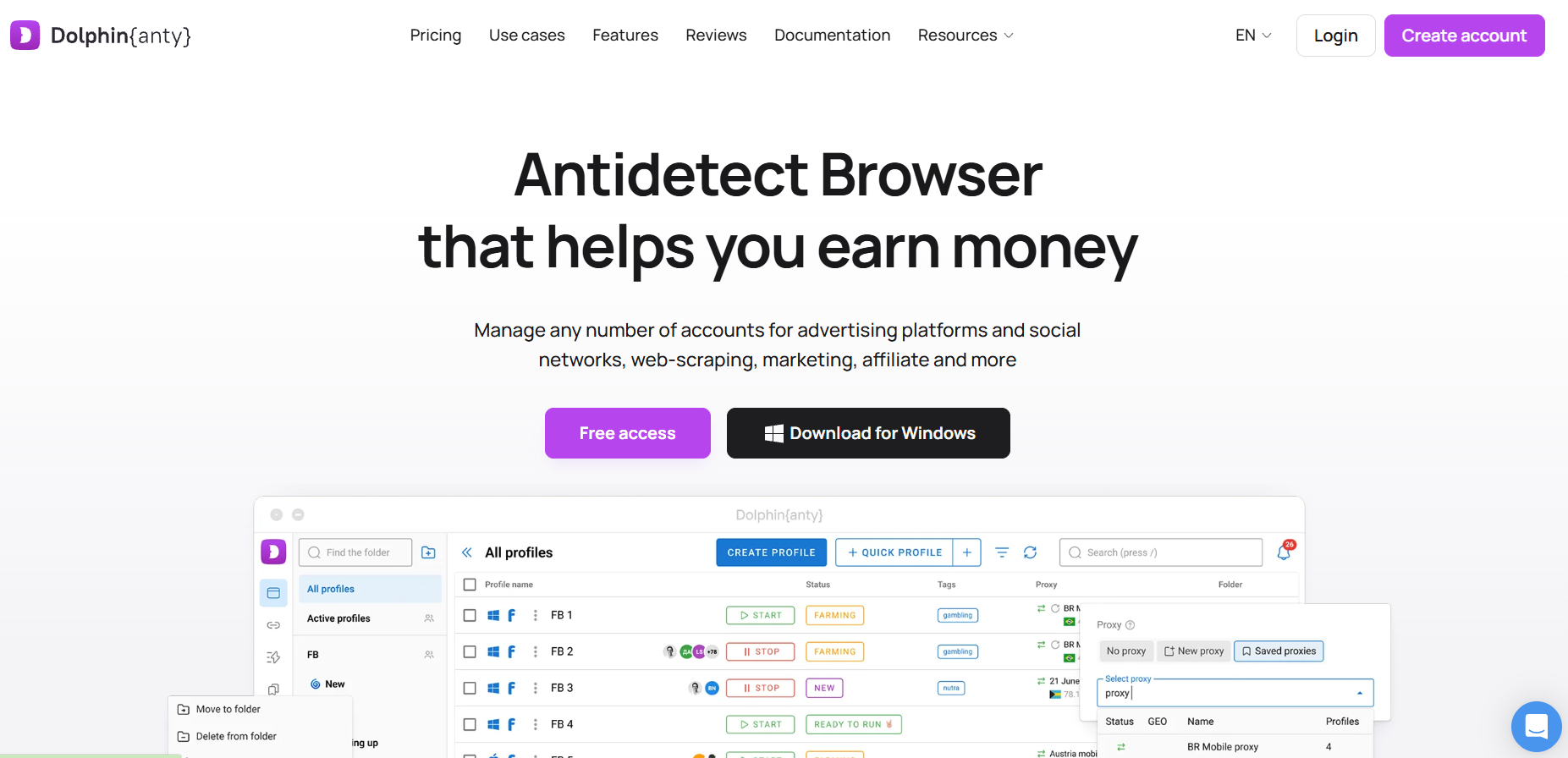
Once the anti-detect browser is installed, sign in to your account and you’re ready to get started.
How to Create Browser Profiles in Dolphin Anty?
Browser profiles are the foundation of any anti-detect browser.
A browser profile (also referred to simply as a profile) is an isolated browsing environment with its own unique combination of browser settings, operating system, IP address, cookies, and extensions. From a website’s perspective, every profile appears to be a completely different user.
You can create profiles using either the Quick Profile or Create Profile button.
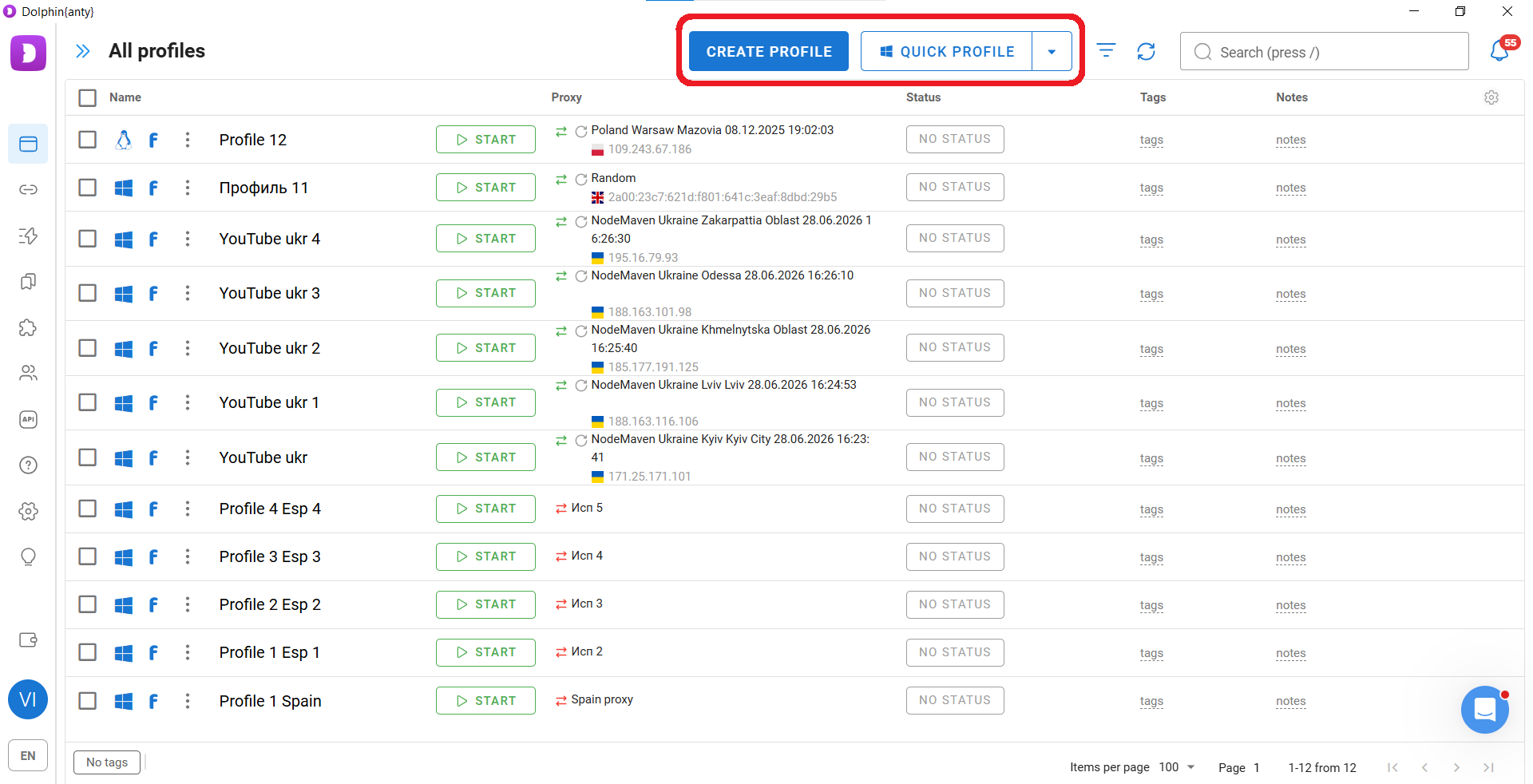
Selecting Quick Profile creates a browser profile using your device’s operating system, a randomly generated fingerprint, and the last proxy you used.
When creating a profile manually, selecting a proxy is mandatory. All other parameters can be generated automatically, although it’s recommended to give the profile a meaningful name so it’s easy to find later.
You can either add a new proxy manually or choose one from your saved proxy list. To add a new proxy manually, click New Proxy.
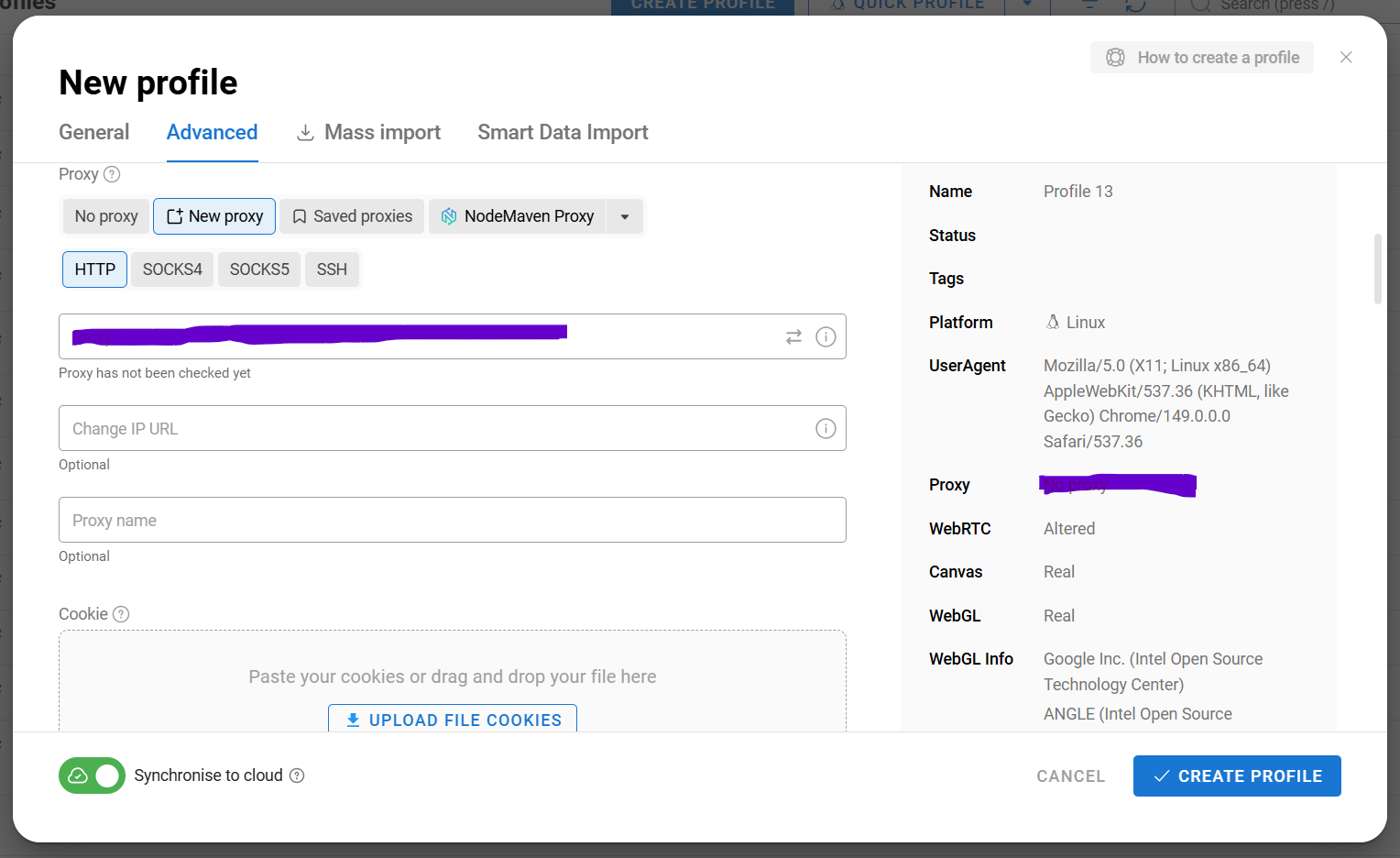
To use one of your saved proxies, click Select Proxy.
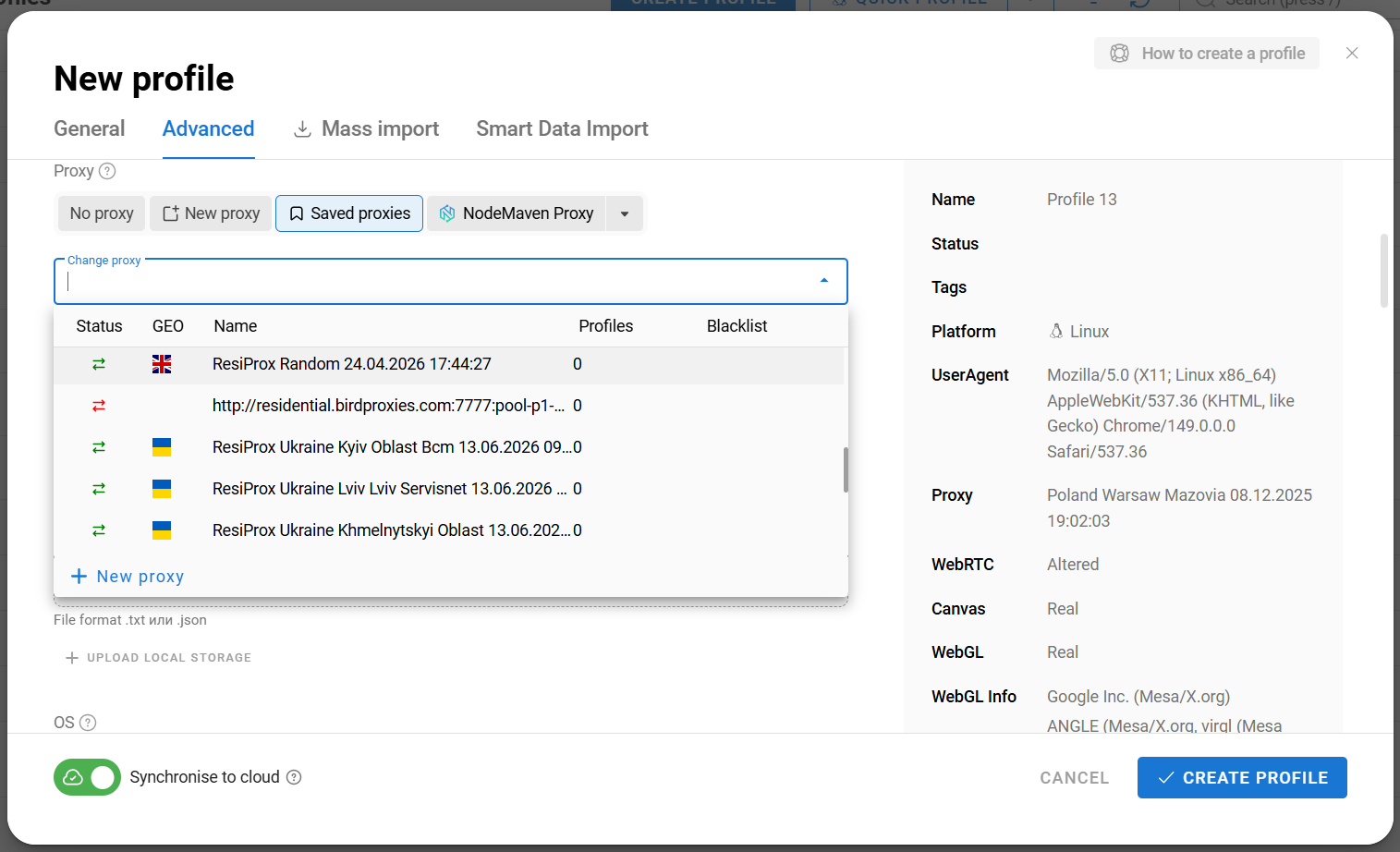
The operating system settings and browser fingerprint are generated automatically, and it’s generally best not to modify them manually. Cookies can either be imported together with your Facebook account or generated later using the Cookie Robot.
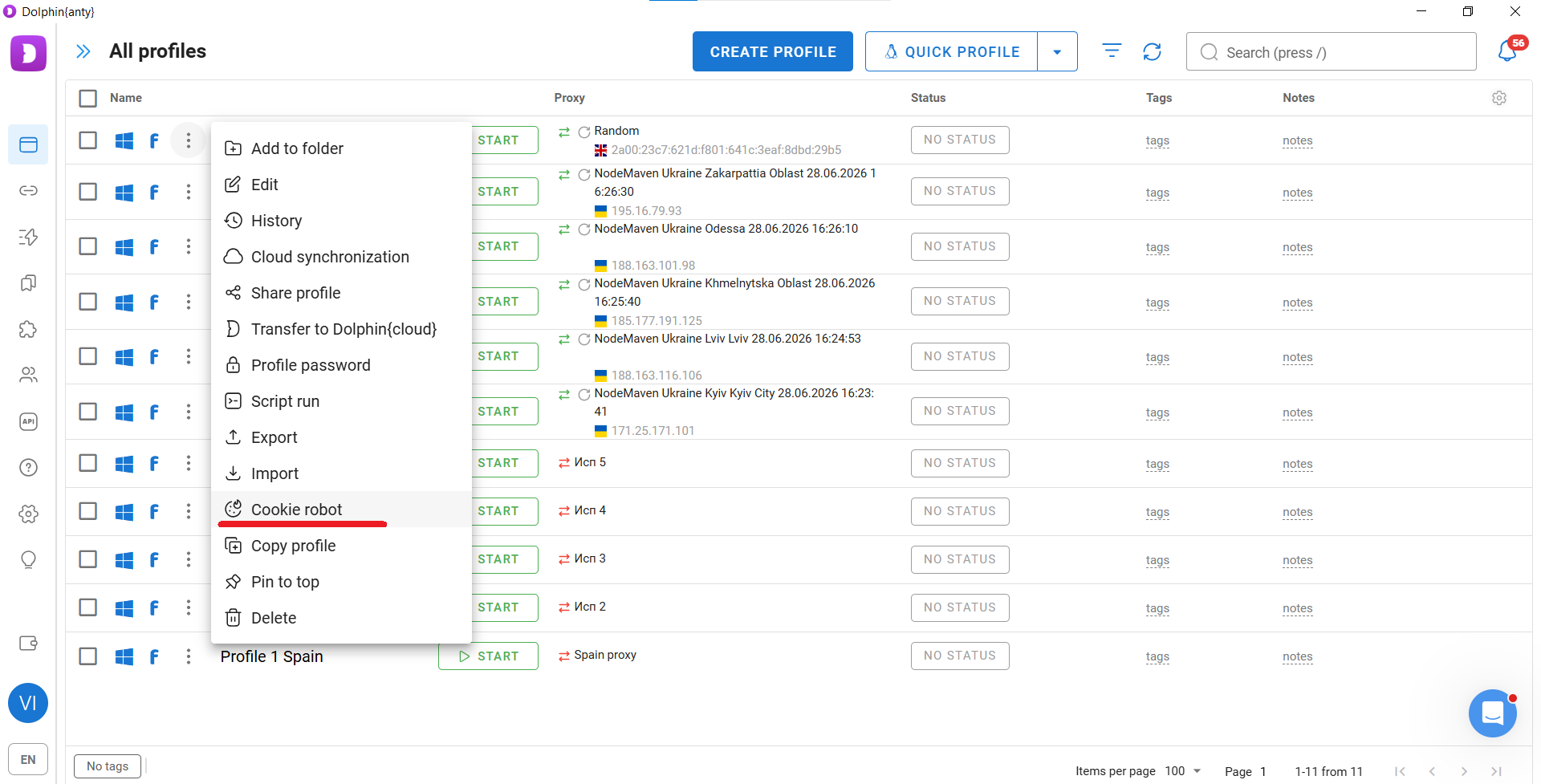
Managing Browser Profiles Individually and in Bulk
To manage an individual profile, click the three-dot menu and choose one of the available options:
- Edit — modify the profile settings, including its name, profile type, fingerprint parameters, and proxy.
- Share Profile — send the profile to a team member or another Dolphin Anty user.
- Export / Import — export a profile to your device or import one from local storage.
- Cookie Robot — quickly generate browsing cookies by visiting a predefined list of URLs.
- Copy Profile — create an identical browser profile with a different digital fingerprint.
To perform actions on multiple profiles at once, first select them using the checkboxes.
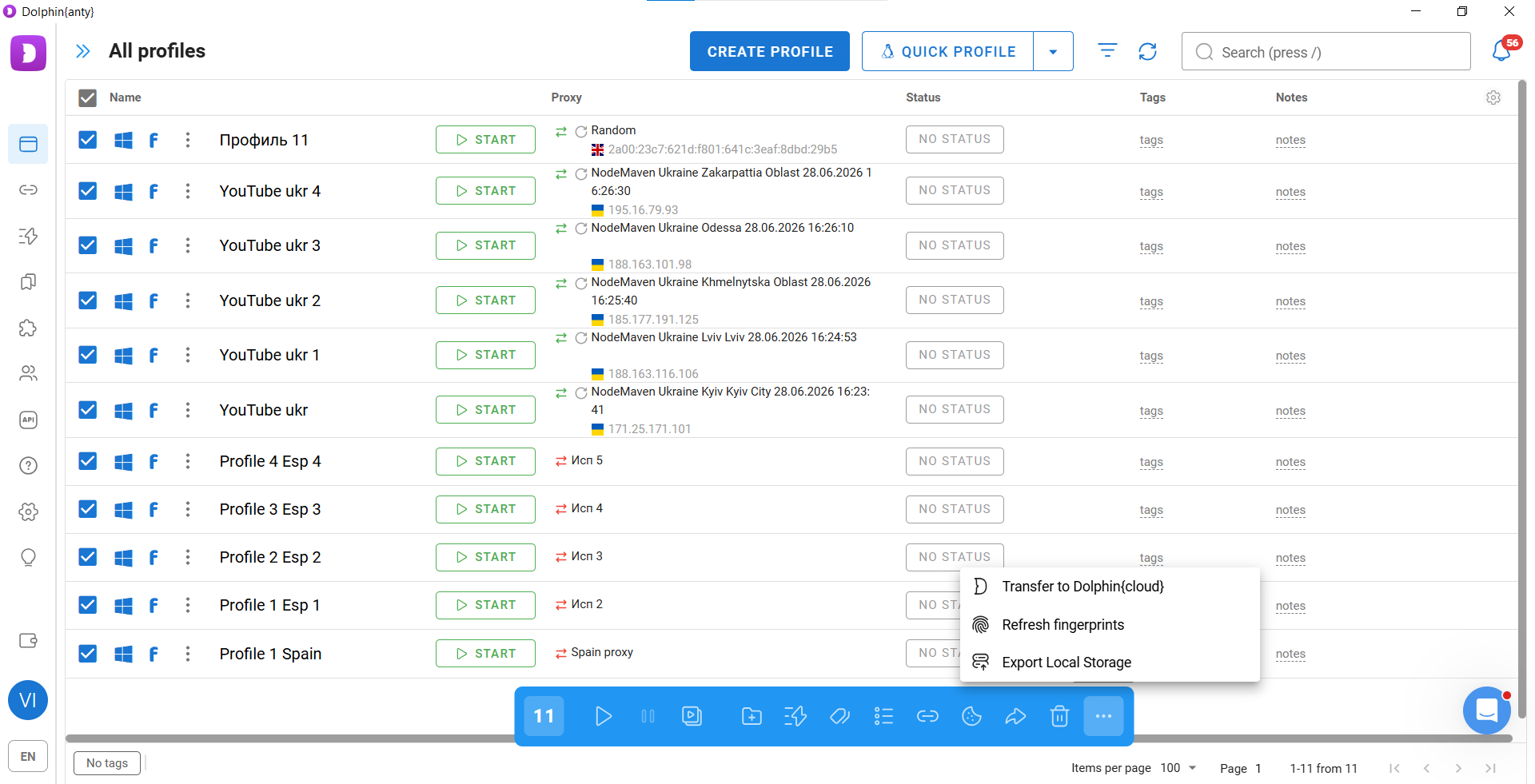
Bulk selection allows you to launch or close several browser profiles simultaneously. It also enables a number of other batch actions:
- Assign proxies. You can use proxies already saved in Dolphin Anty or add brand-new ones obtained from your proxy provider.
- Synchronise browser profiles. The Synchronizer mirrors your actions across every browser profile opened through it.
- Run scenarios. Once a scenario has been created, Dolphin Anty automatically performs the predefined sequence of actions without your involvement. You configure the workflow once in the Scenarios section and can then run it on any browser profile.
- Refresh fingerprints with one click. This is useful when you want to continue working in your existing browser profiles while replacing the accounts and proxies.
- Export cookies. Useful when transferring accounts to another user, allowing you to transfer their browsing environment along with them.
- Share profiles with other Dolphin Anty users or export them to your device’s local storage.
How to Add Proxies?
It’s best to add your proxies to the dedicated section in advance so they can be assigned to browser profiles whenever needed.
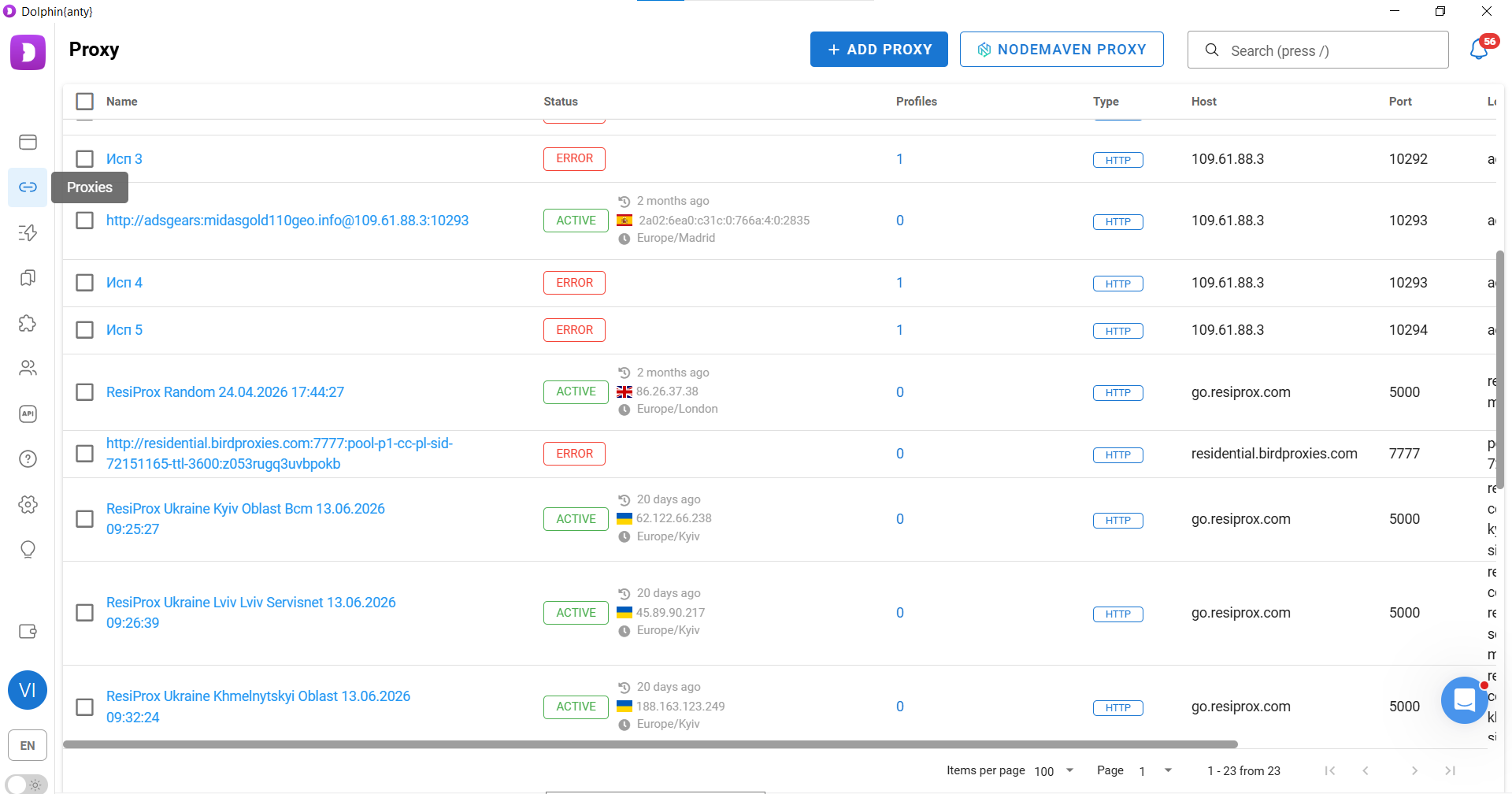
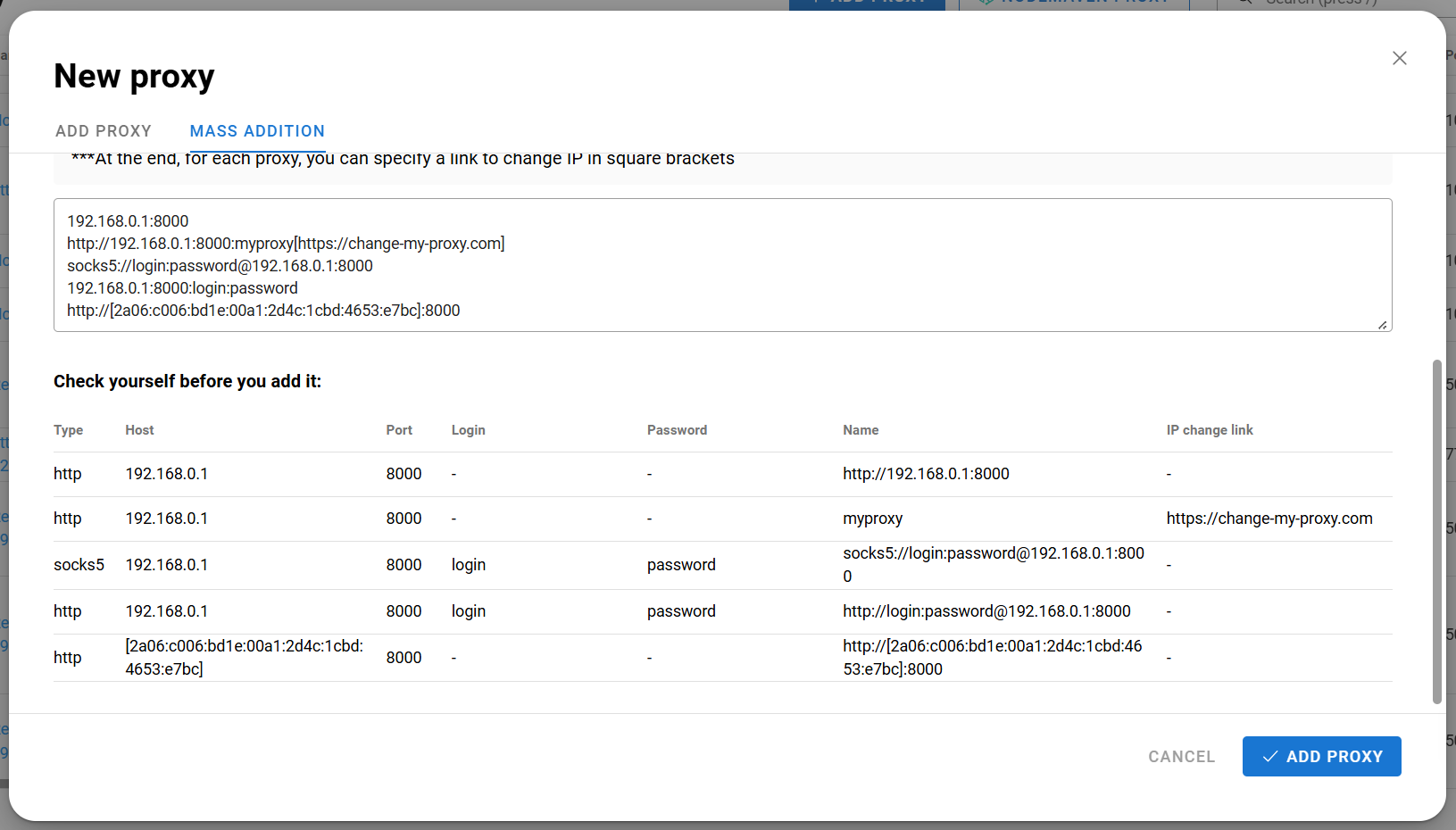
The easiest way is to import them in bulk. Simply copy the proxy list from your provider and paste it into the corresponding field.
Click Add Proxy, then switch to the Bulk Import tab to upload multiple proxy-ports at once.
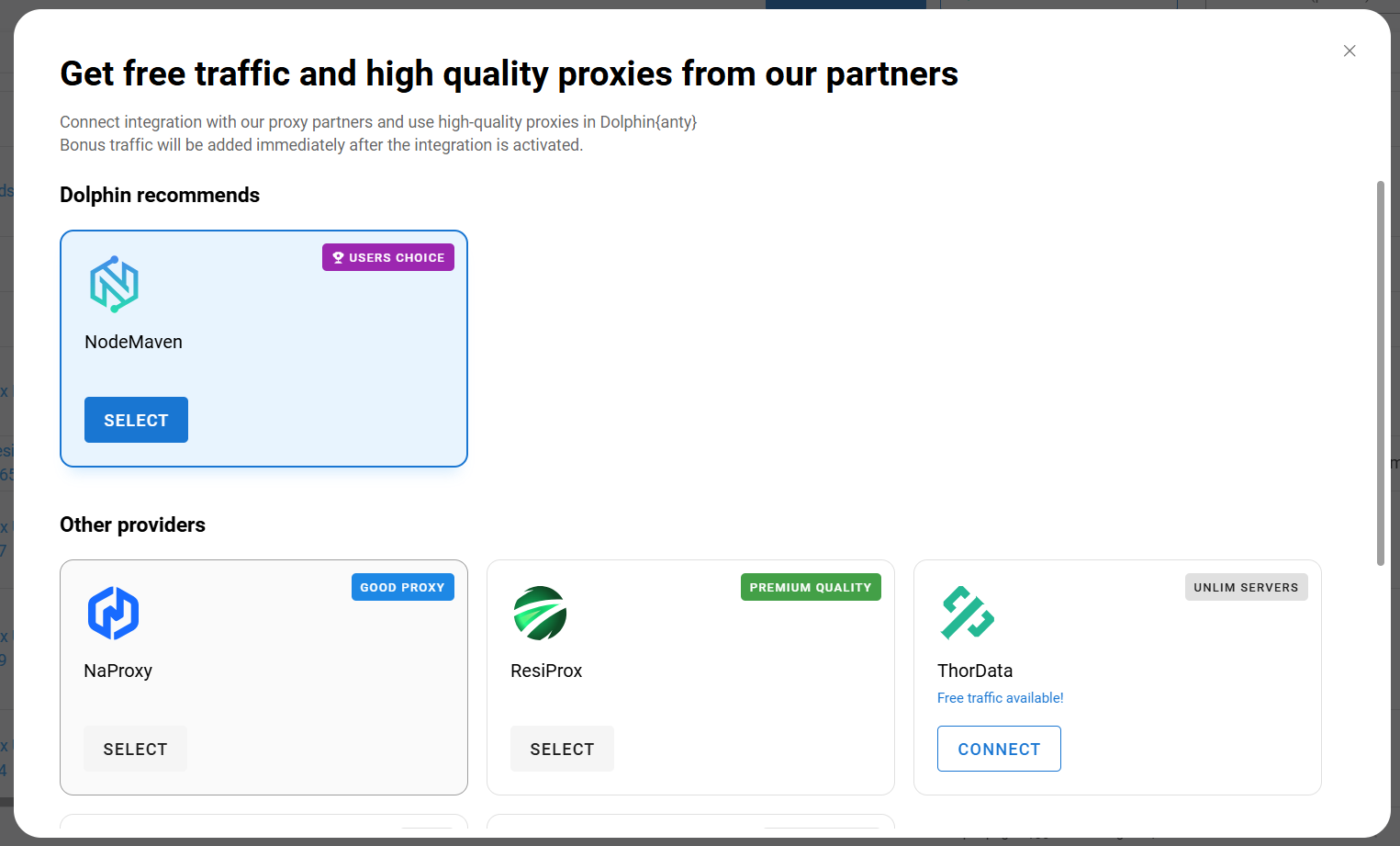
If you don’t have a proxy provider yet, you can use one of Dolphin Anty’s partner proxy services. Click the button next to Add Proxy to open the list of available providers. Each partner offers a certain amount of trial traffic. Choose any provider, connect it, select the desired location, and add the generated proxy ports directly to your proxy list.
How to Prepare Dolphin Anty for Large-Scale Work in Just 10 Minutes
To quickly create a large number of browser profiles ready for use, you can use either Bulk Import or Smart Import.
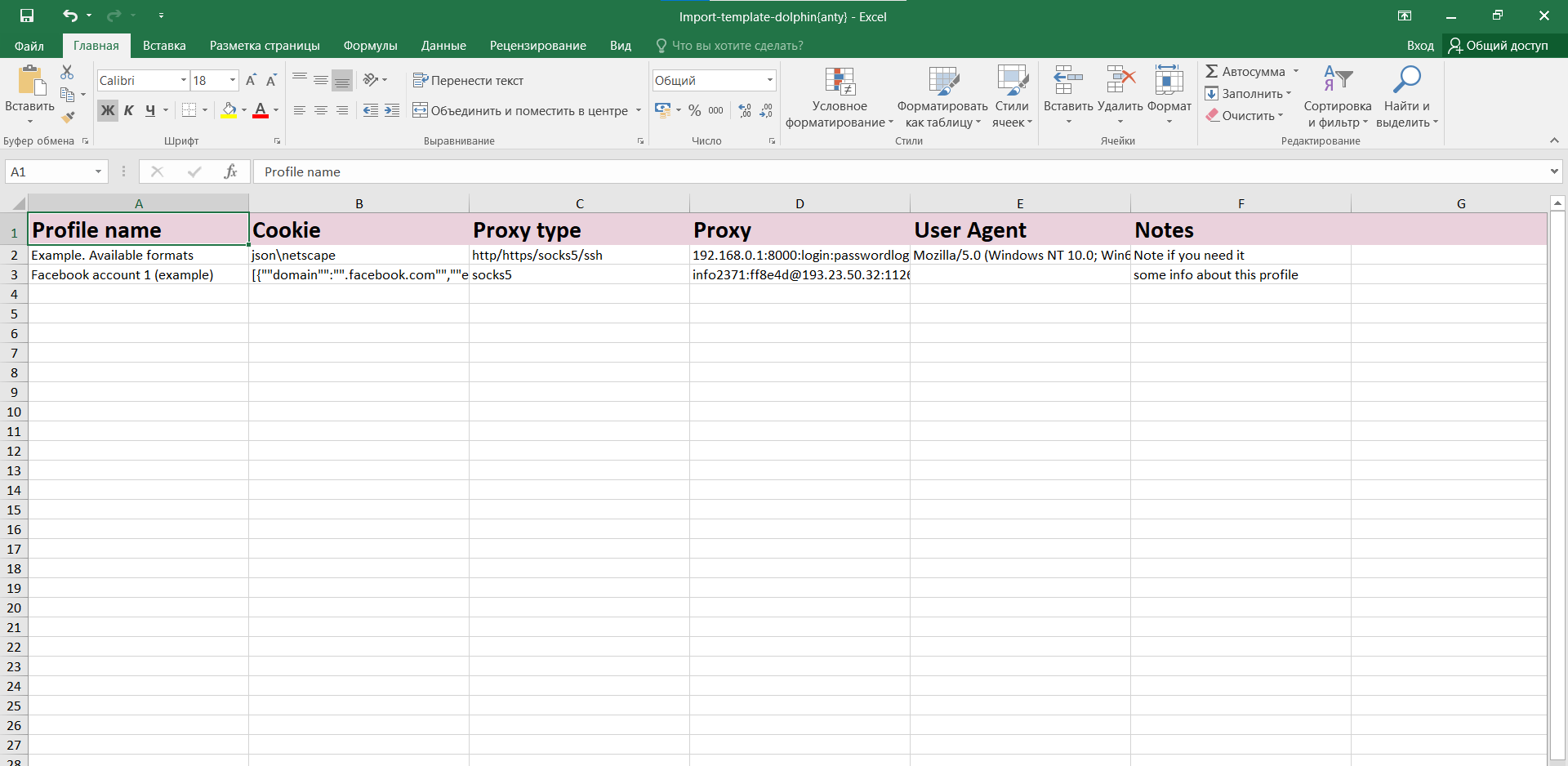
For Bulk Import, download the Excel template and fill it in. Then upload the completed file to Dolphin Anty.
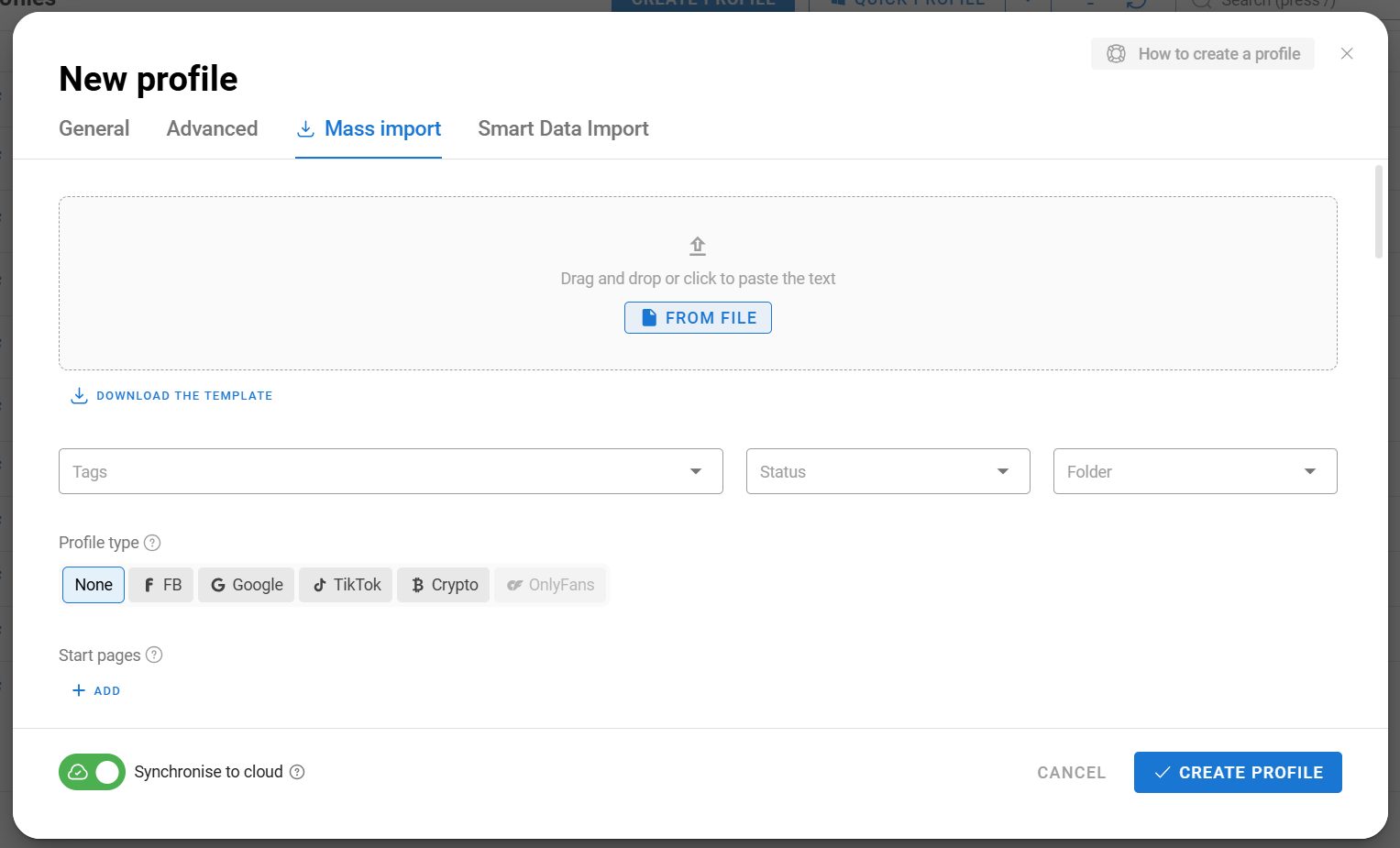
To use Smart Data Import, upload a file containing your advertising account data, and the system will automatically generate a browser profile for each account. You can then assign your prepared proxies using the bulk actions menu and the Change Proxy option — all in just 3-4 clicks.
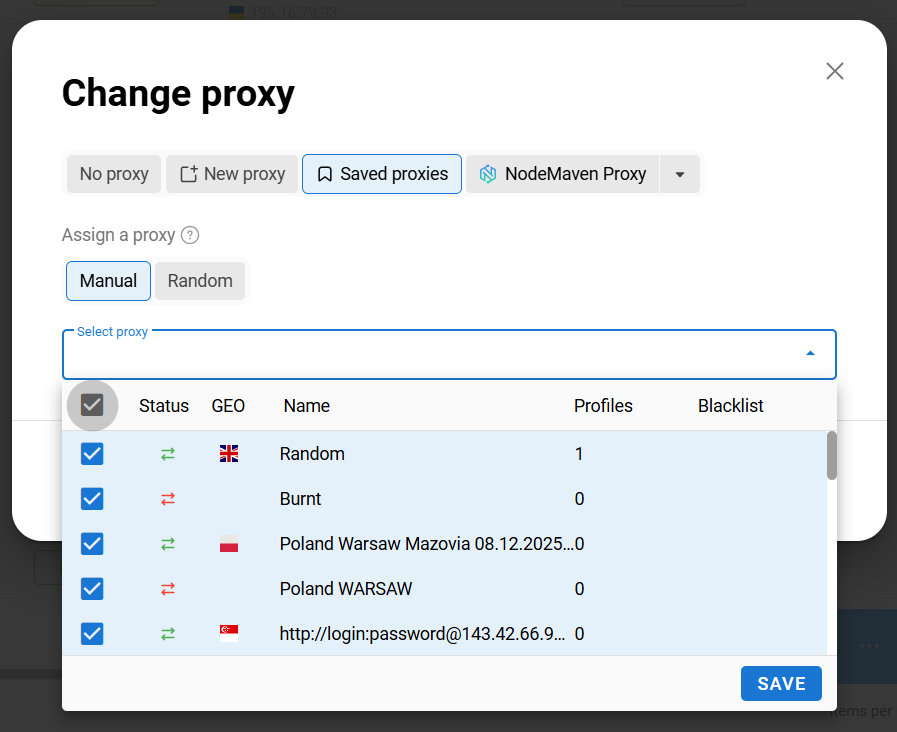
After these simple steps, you’ll have a complete batch of browser profiles with accounts and proxies ready to use.
The profile list in Dolphin Anty is fully customisable. You can add or remove columns, as well as adjust their width.
To choose which columns to display, click the Customize Columns icon and tick the fields you want to keep.
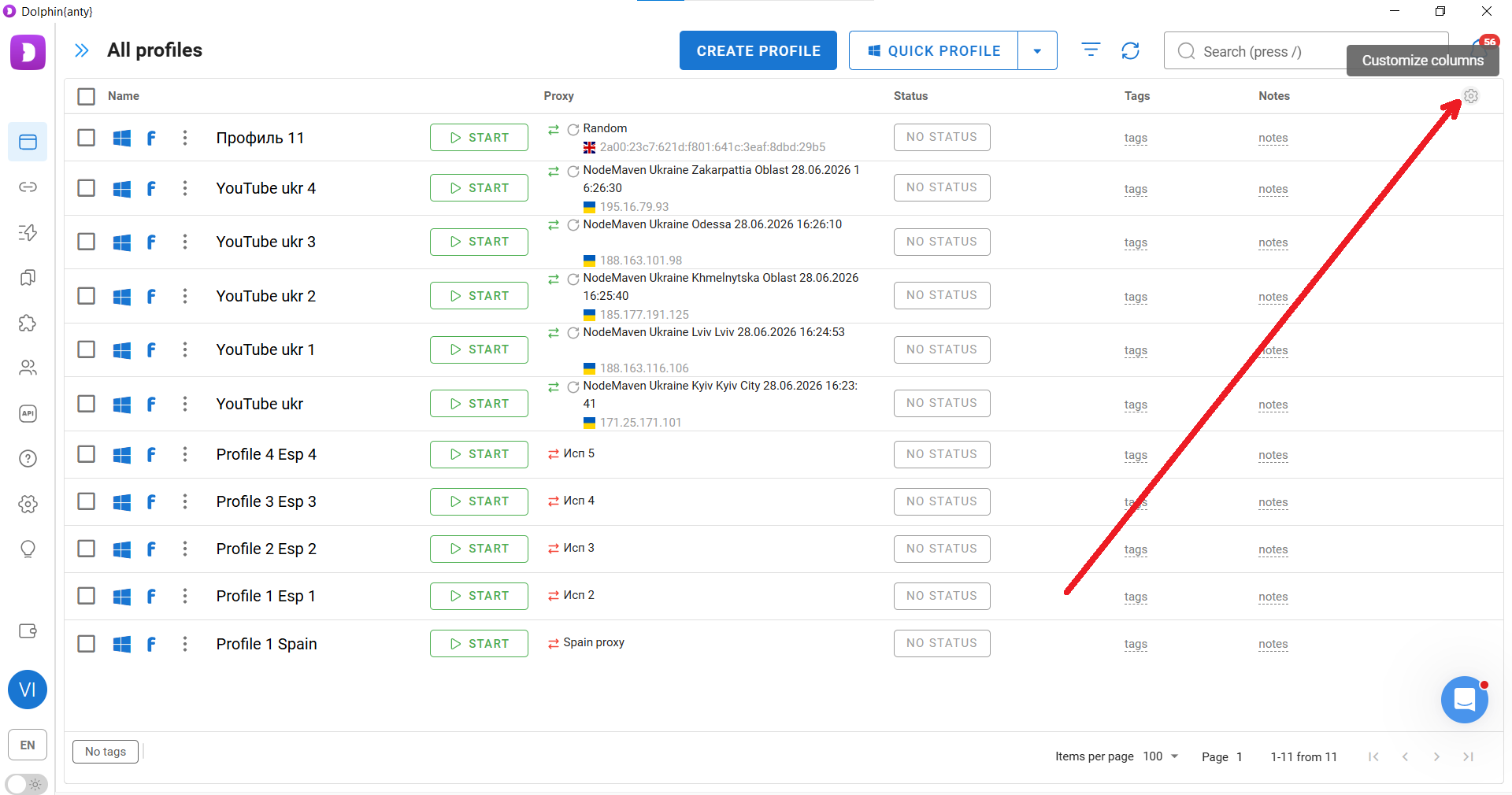
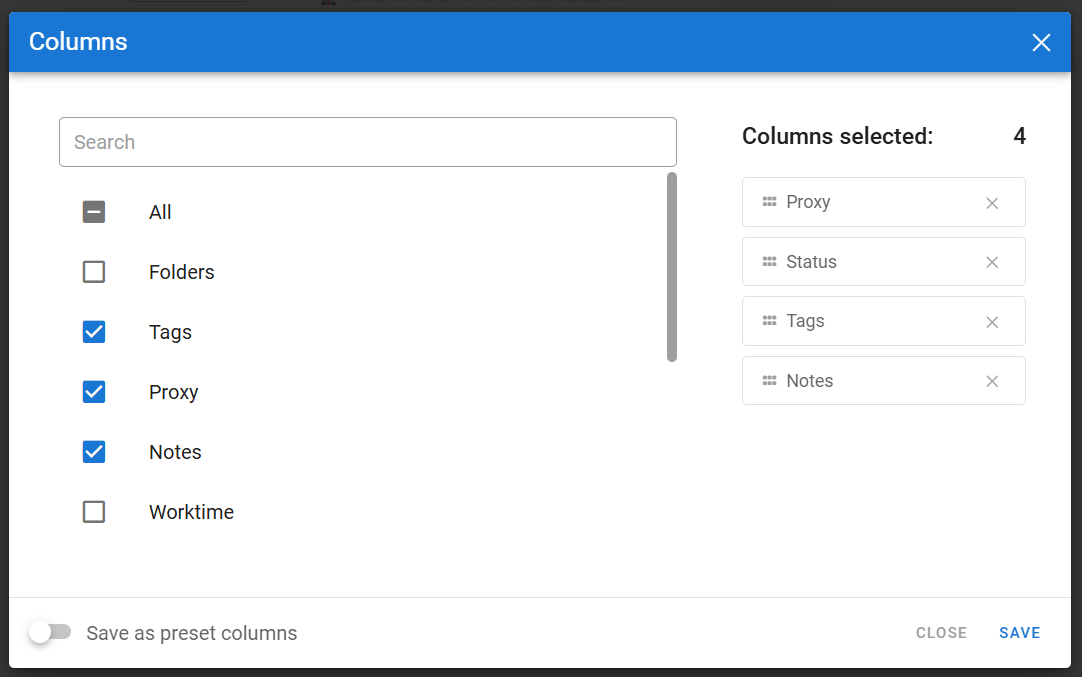
The Columns selected panel on the right lets you rearrange the column order. To resize a column, hover over its border above the profile list and drag it left or right.
Statuses, Tags, and Notes
Statuses, tags, and notes make navigation much easier by turning a long list of browser profiles into a well-organised workspace.
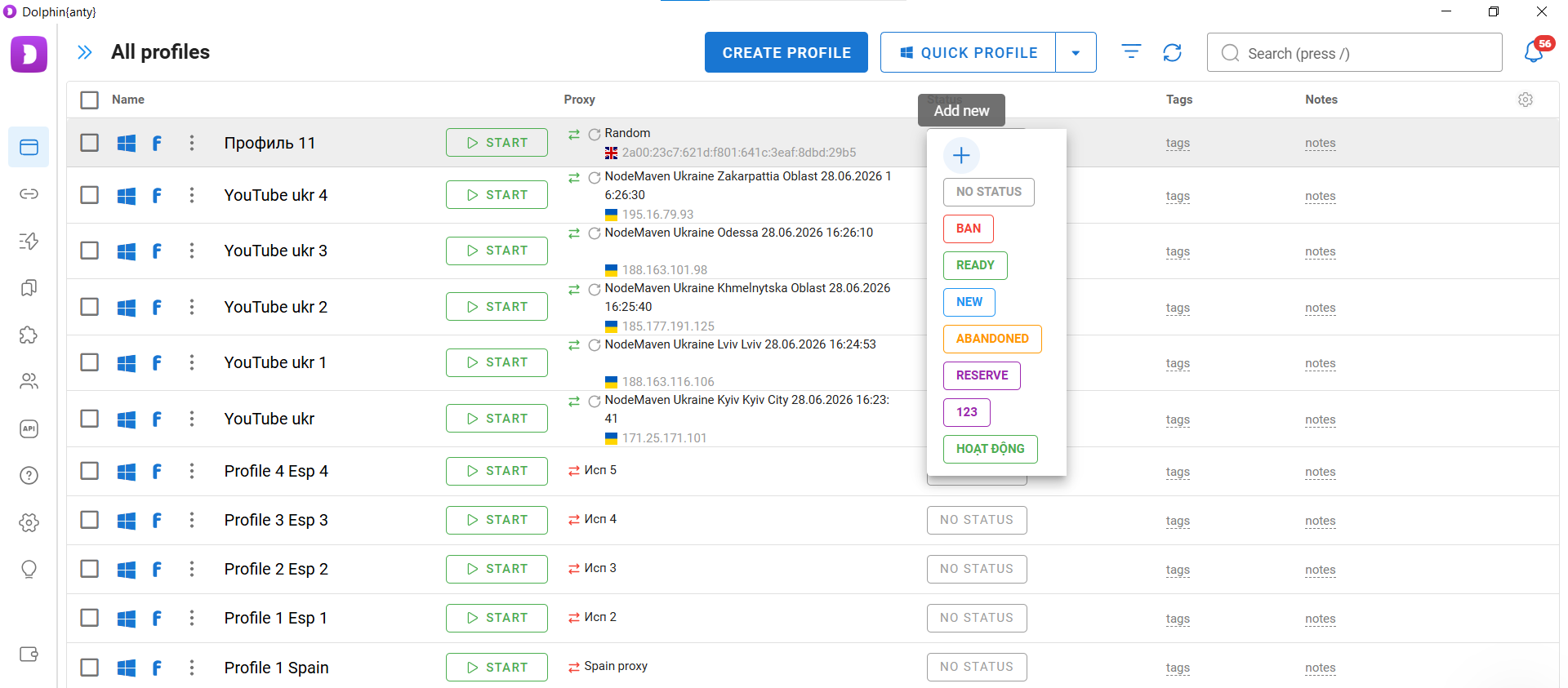
You can add them directly from the profile list or while creating a browser profile. Statuses and notes are colour-coded, making it easy to identify different categories of profiles at a glance.
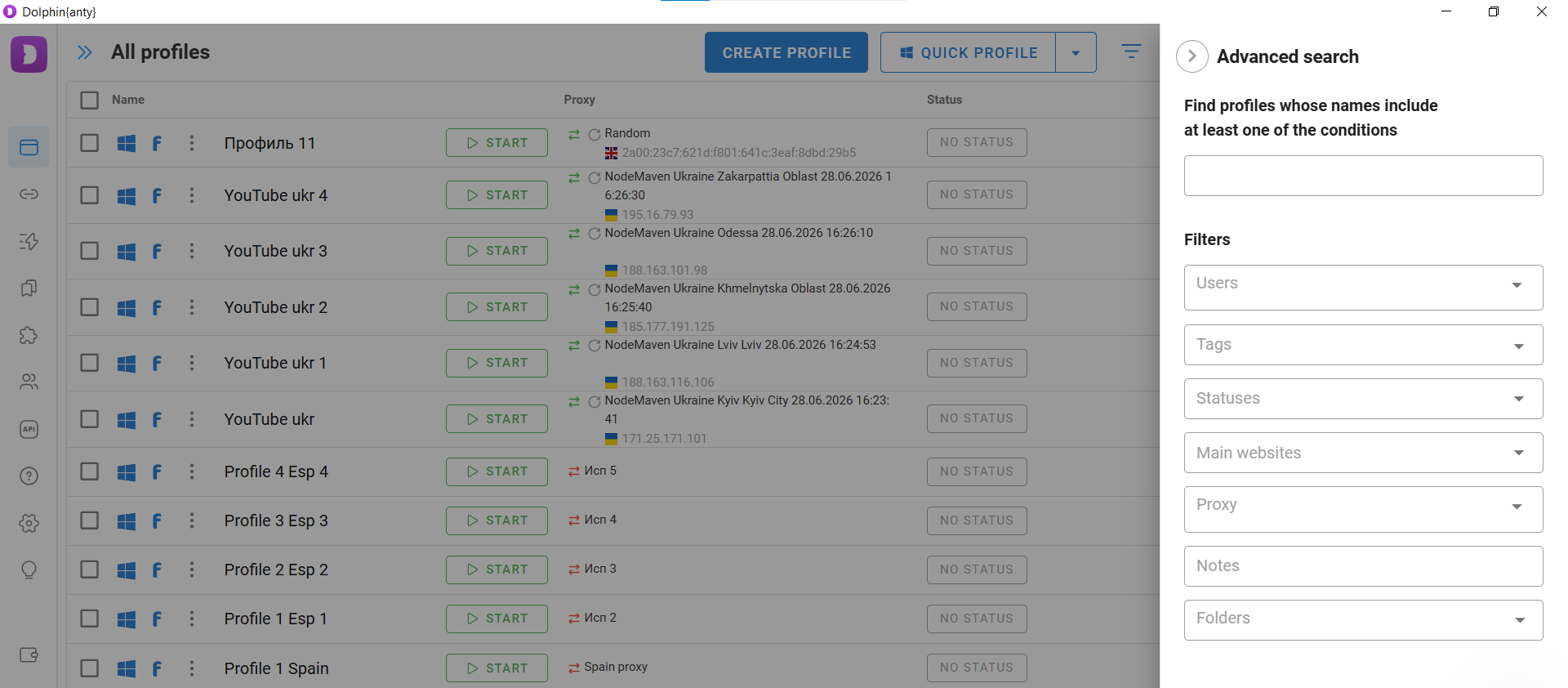
Tags, statuses, and notes also simplify filtering. A list of all tags is displayed at the bottom of the page. Clicking any tag instantly filters the list to show only the matching browser profiles.
You can also open the advanced filters by clicking the three-line filter icon next to the profile creation buttons. Here you can filter browser profiles by user, proxy, or folder.
Additional Features: Automation, Scaling, and Teamwork
A good anti-detect browser doesn’t just protect your anonymity—it also helps you work more efficiently. That’s why Dolphin Anty includes:
- Automation via API;
- Automation using Scenarios;
- Synchronizer;
- Team Workspace.
Using the Open API documentation, you can integrate Dolphin Anty with a remote server or workstation, allowing you to control browser profiles programmatically instead of manually.
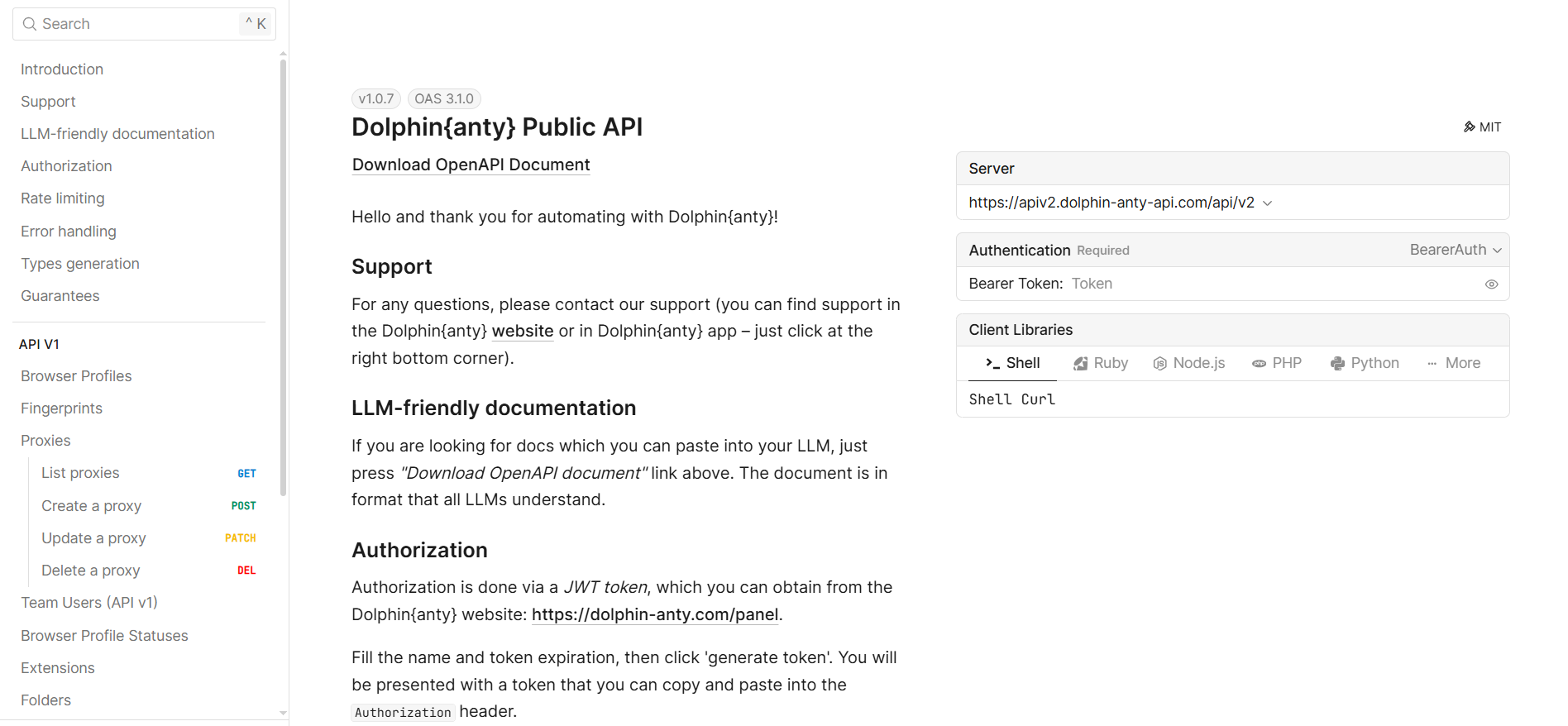
In other words, you create and configure a script once, and it sends commands to the anti-detect browser automatically.
Scenarios (Scripts)
Scenarios let you create a sequence of actions that can later be executed automatically inside your browser profiles. This is especially useful for large-scale account farming.
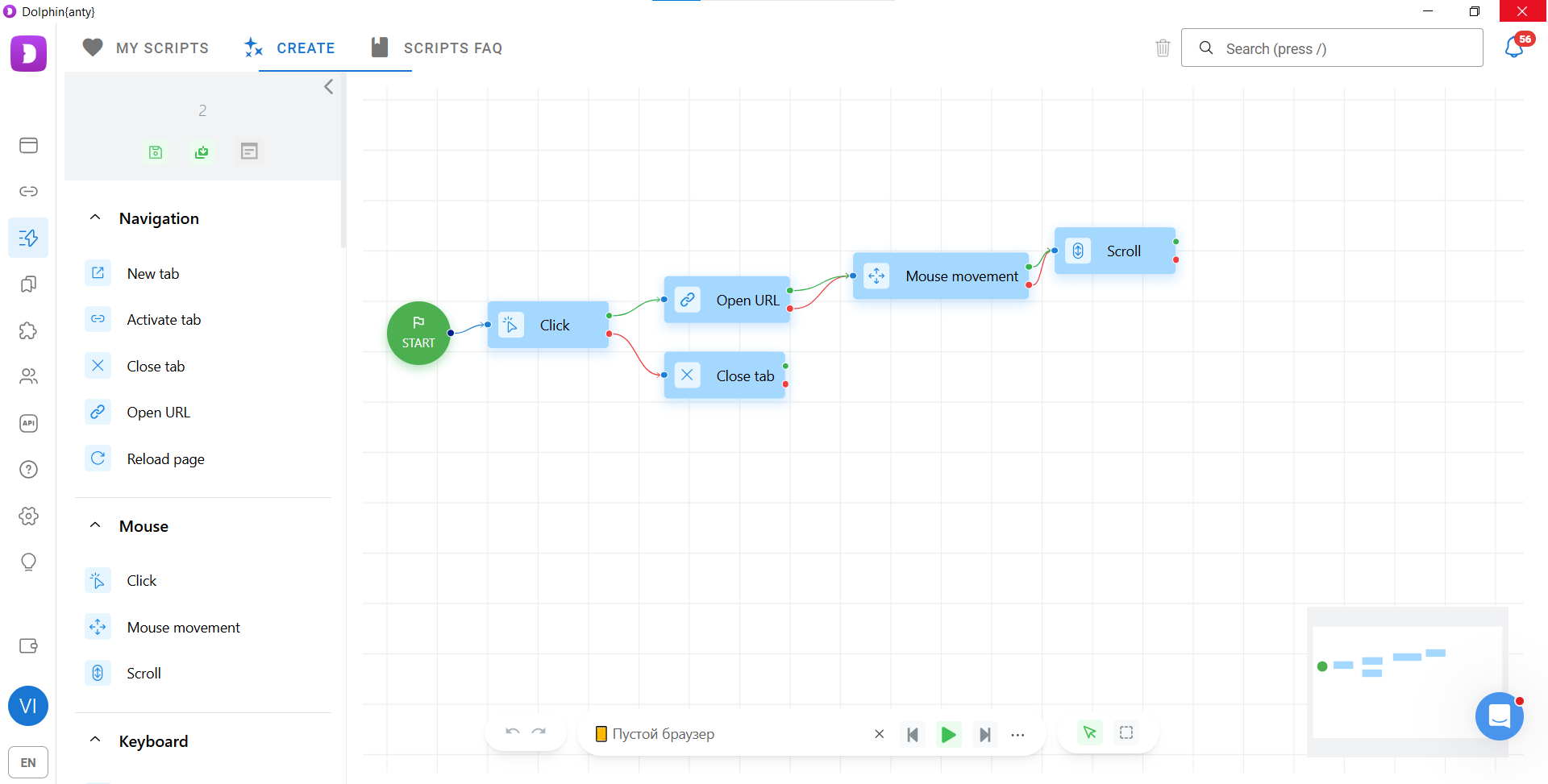
To run a scenario, simply select the required browser profiles and click Script Run.
Synchronizer
The Synchronizer mirrors every action you perform across multiple browser profiles simultaneously.
For example, if you type “synchronizer” into Google in one browser, the same text will automatically be entered into every other synchronised browser.
To start the Synchronizer, select the browser profiles, click the Synchronizer button in the toolbar, choose the master profile, and click Launch.
The selected browser profiles will open, and every action you perform in the master profile will be replicated in all the others.
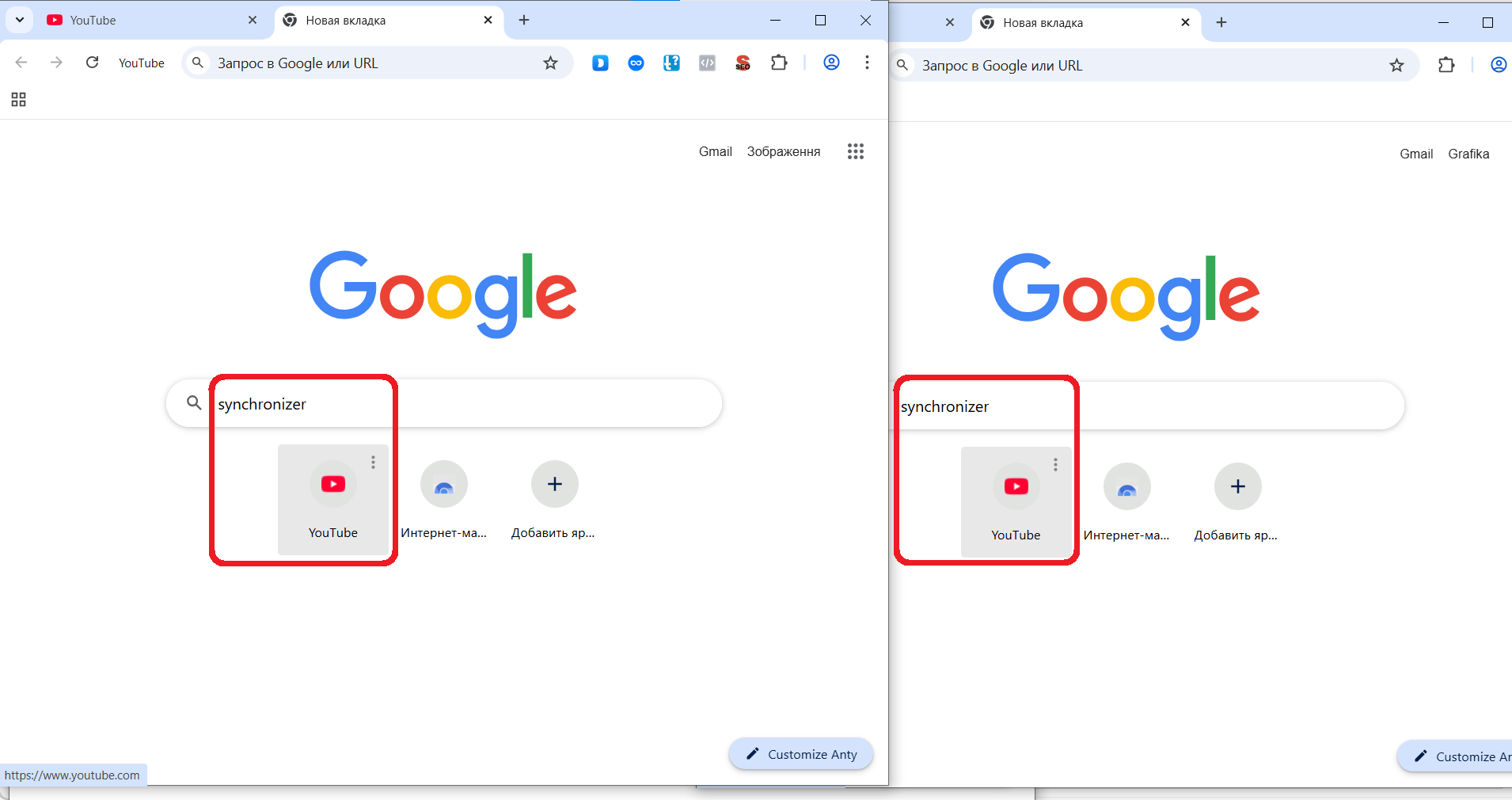
Synchronisation significantly reduces the time spent on repetitive tasks.
Team Access
For agencies and media buying teams, Dolphin Anty provides collaborative access for multiple users.
Permissions can be assigned individually, allowing administrators to control who has access to specific resources. Team members can share browser profiles, scenarios, extensions, and proxies with one another.
Simulating Real User Behaviour
One of Dolphin Anty’s biggest strengths is its approach to browser fingerprints. Instead of combining random—or even merely compatible—parameters, Dolphin Anty uses fingerprints based on real user configurations. Once you select an operating system and configure a proxy, the anti-detect browser automatically generates the fingerprint that best matches those settings.
But fingerprinting is only part of the equation. Dolphin Anty also includes two features that make your browsing behaviour appear much more natural rather than automated:
- Smart Paste;
- Sequential Browser Launch.
Smart Paste
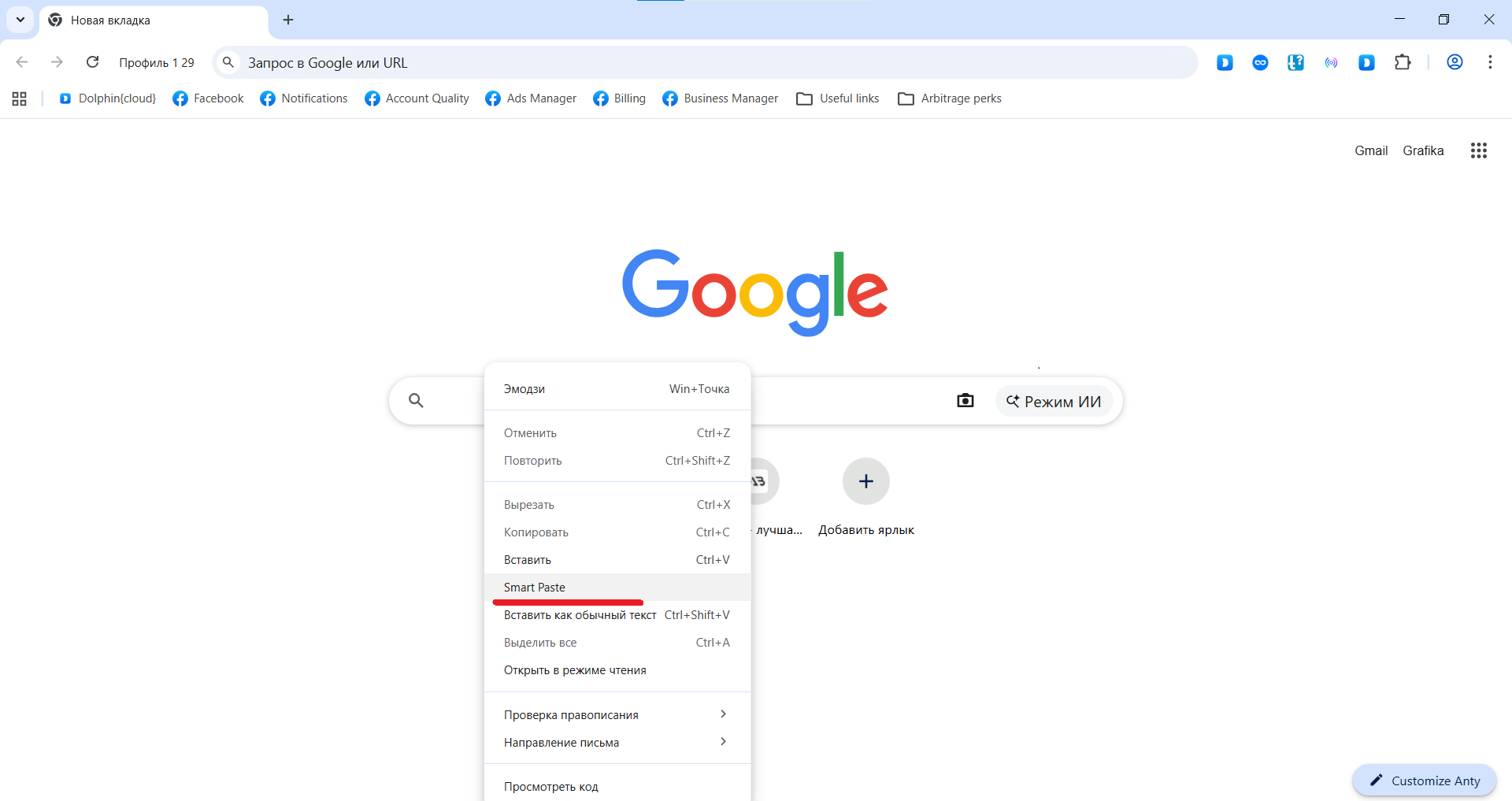
Some platforms become suspicious when login credentials are entered using a standard copy-and-paste action. Smart Paste solves this problem by simulating manual typing instead of instantly inserting the copied text. Characters are entered at random speeds, making the input look like it was typed by a real person.
Sequential Browser Launch
When running farming or warm-up scenarios, multiple browser profiles—and the accounts inside them—are often launched at the same time. If several accounts are opened simultaneously and perform similar actions, this may trigger anti-fraud systems.
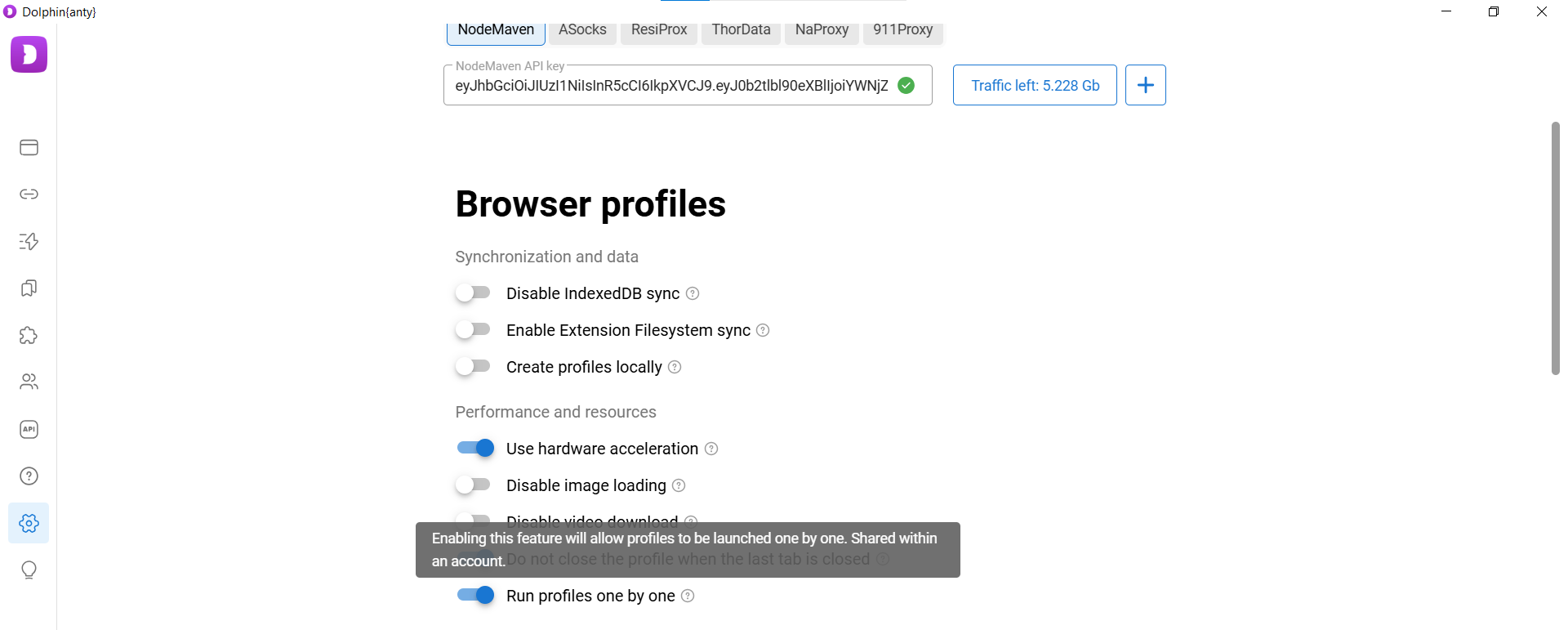
Dolphin Anty allows browser profiles to be launched one after another with random delays between each launch. Since the intervals aren’t fixed, the process appears much more natural.
To enable this feature, open Settings and turn on Run Profiles One by One.
Conclusion
Dolphin Anty includes virtually every feature that affiliate marketers need because it was built by people who work in affiliate marketing themselves. At the same time, it’s designed not only for media buyers but also for digital marketers, crypto traders, e-commerce businesses, and SMM specialists.
You can try Dolphin Anty’s core features completely free of charge by using the Free plan, which includes up to five browser profiles, along with trial traffic from partner proxy providers.

SalesDoubler.pro content manager